> For the complete documentation index, see [llms.txt](https://willow-watchface.ammarptn.com/llms.txt). Markdown versions of documentation pages are available by appending `.md` to page URLs; this page is available as [Markdown](https://willow-watchface.ammarptn.com/troubleshooting/how-to-fix-gif-too-big-errors-on-willow-motion-watch-face.md).
# How to Fix "GIF Too Big" Errors on Willow Motion Watch Face
We all love using animated GIFs on our watch faces. Whether it's a funny meme, a cute pet animation, or a cool cinematic loop, GIFs bring your watch to life.
However, you might have encountered a frustrating issue: you found the *perfect* GIF, but when you try to push it to your watch, it fails. You might see an error message, or the app might tell you the file is too big.
#### The Problem: Watch Memory Limits
Smartwatches are powerful, but they have significantly less memory (RAM) than your watch. A high-quality GIF that looks great on your phone might be overkill for the watch face. When you try to load that directly onto your watch, it can easily consume too much memory, causing the system to reject it or even crash the watch face.
#### The Solution: Built-in GIF Optimization
We've added a feature specifically to handle this! You don't need to go to a separate website to resize or compress your GIF. Willow Watch Face can optimize it for you on the fly.
#### How to Enable GIF Optimization
1. Open the **Willow Motion Watch Face** app on your phone.
2. Go to the configuration screen for your watch face.
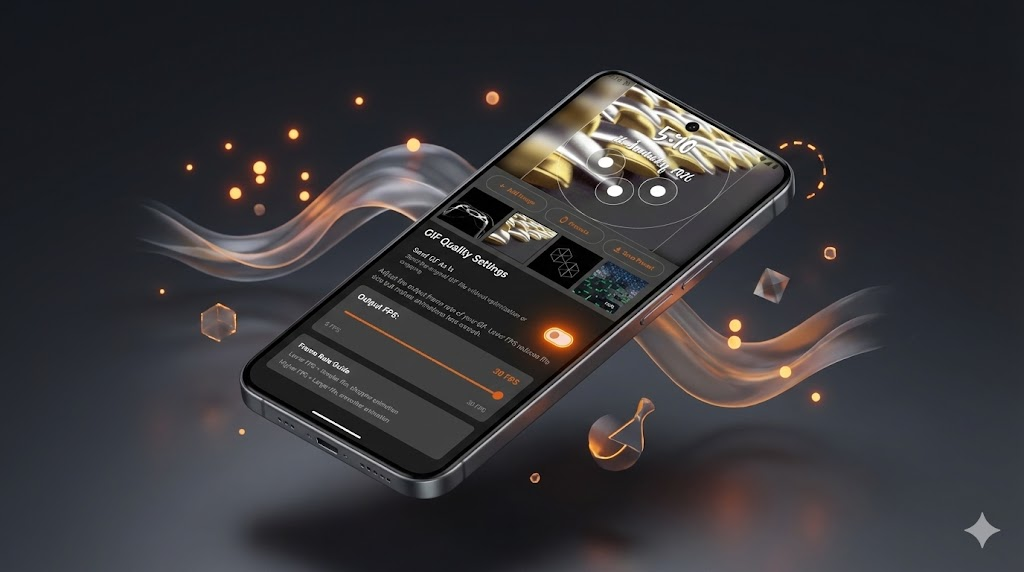
3. Scroll down to the **GIF Quality Settings** section.
4. Look for the switch labeled **"Send GIF As Is"**.
* By default, this is **ON**, meaning we try to send the original file.
5. **Turn OFF "Send GIF As Is"**.
#### What Happens Next?
Once you turn this setting off, the app will automatically process your GIF before sending it to the watch. It smartly optimizes the file size to ensure it fits comfortably within your watch's memory limits.
You will also see a new slider appear: **Output FPS**.
* **Lower FPS**: Smaller file size, but the animation might look a bit choppier.
* **Higher FPS**: Smoother animation, but a larger file size.
We recommend leaving it at the default setting first. If it still fails, try lowering the FPS slightly.
#### Give It a Try!
Don't let file size limits stop you from expressing yourself. Enable optimization, and enjoy your favorite GIFs on your wrist!